
Using the Barcode Font with Word
Follow the steps below to create a barcode in Microsoft Word or any of your favourite text editor/graphics editor.
- Launch Microsoft Word
- Launch ConnectCode Encoder. The Encoder can be started from the Windows Start Menu.
- In the Encoder, choose the barcode you will like to use and key in the data to encode.
- Click on the Encode button
- Make sure the option "Show as text" is not selected/checked
- In the Preview section of the Encoder, copy the barcode by pressing on "Ctrl" key followed by the "C" (keeping the "Ctrl" key pressed). This will copy the barcode.
- Goto Microsoft Word and click on the menu Edit->Paste to paste the barcode
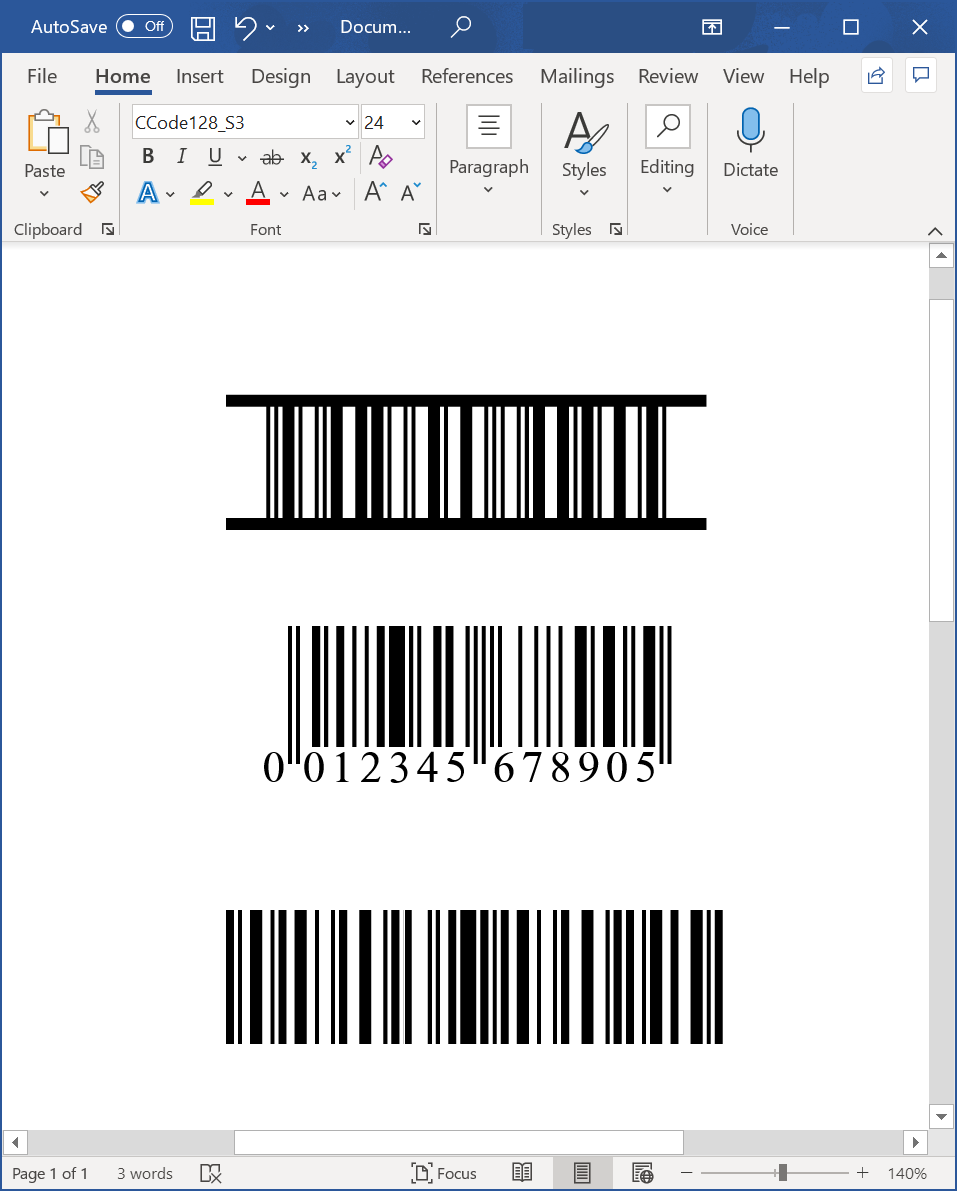
Important Notes
Microsoft Word automatically adds an "End of Line" character when the Enter key is pressed after each line. If this additional character becomes encoded into the barcode, you may encounter problems scanning this barcode.
To simulate this problem, follow the steps below.
- Launch the Font Encoder.
- Generate a Code 39 barcode.
- Copy the output to Microsoft Word.
- Press the Enter Key at the end of the barcode.
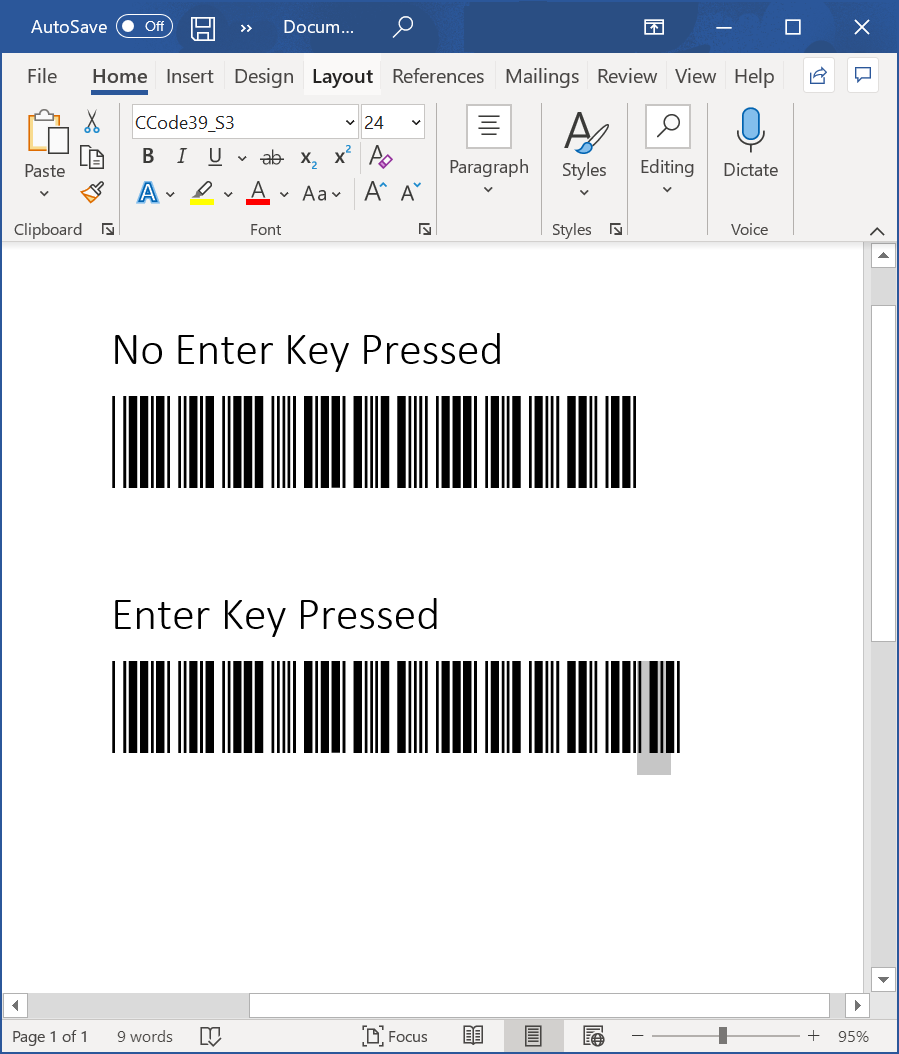
Take note of the additional character added by Word.
To overcome the problem, simply set the font back to a normal font (e.g. Arial or Verdana) after the barcode characters. This way, the End Of Line character will be shown as "space". As shown in the diagram above, simply select the last character in the second barcode and change the font back to Arial. The End Of Line character will not be encoded as part of the barcode.
Mail Merge - Word 2007-2021 / Word 365
You will be able to create barcodes in Excel and do a Mail Merge into Word easily. Simply follow the steps below.
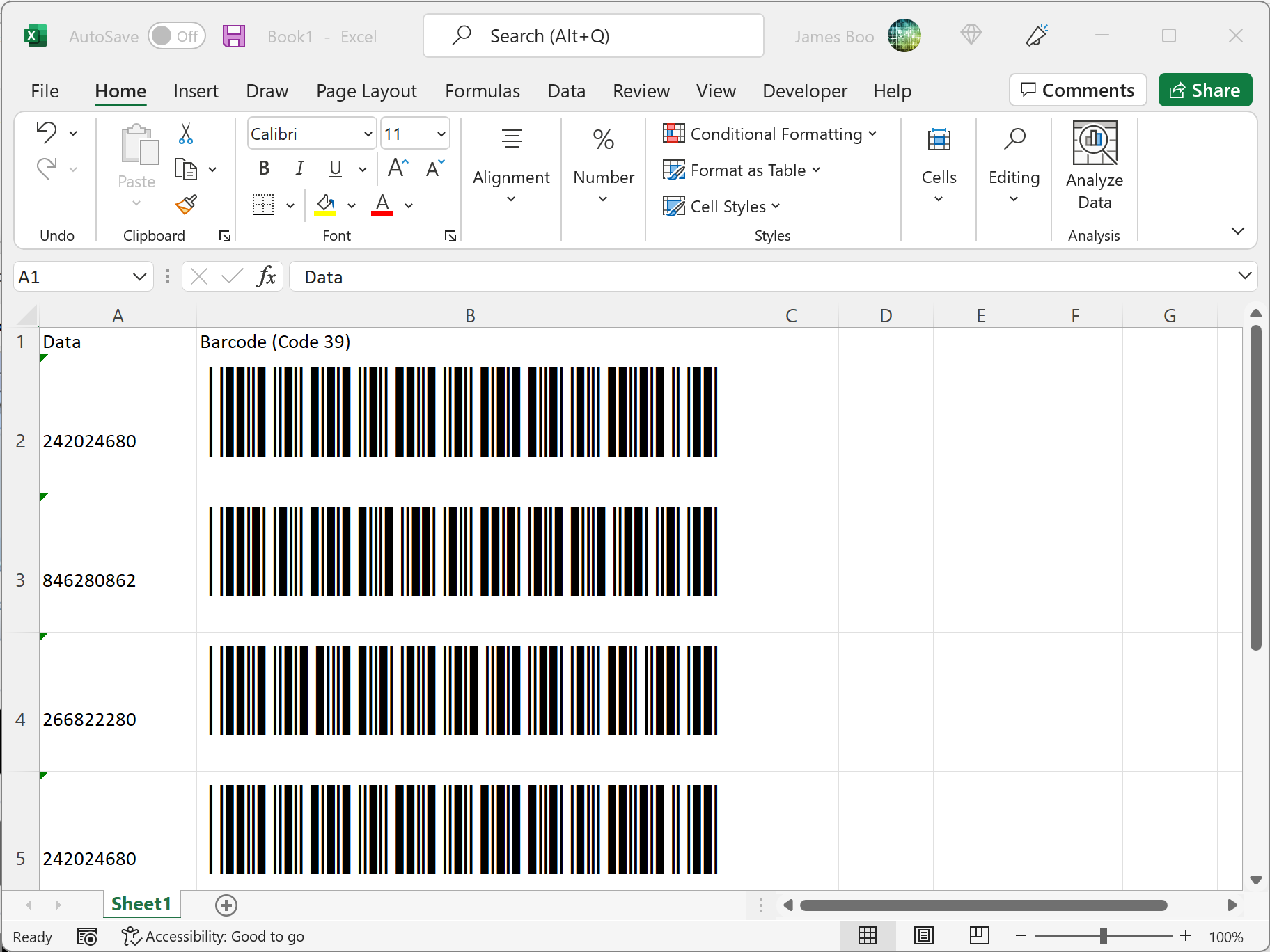
- Create an Excel file with barcodes as discussed in the Excel Tutorial. The contents of the Excel file should look like the diagram below.
- Launch Microsoft Word 2007-2021 / Word 365.
- Click on the Mailings tab.
- Click on Select Recipients -> Use Existing List. A dialog will be launched to select your datasource.
- Select the Excel File created above and select Sheet1$ as the table. Click on the OK button.
- Click on Insert Merge Field. Select the Barcode (Code 39) field and click Insert.
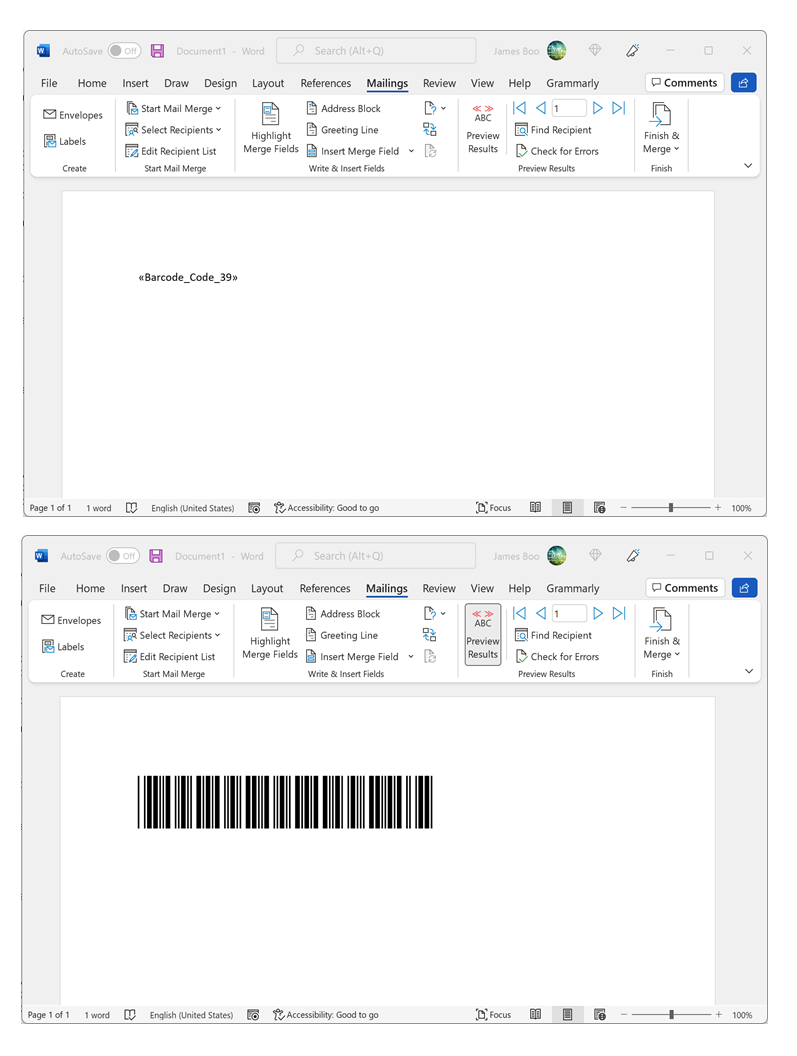
- Select and highlight the inserted field and then choose the appropriate barcode font. e.g. CCode39_S3_Trial
- Click on Preview Results to see the barcode output.
Please note the additional character problem mentioned above also applies here. Simply change the font back to a normal font like Arial at the end of the barcode to resolve this issue.
Mail Merge - Word 2003
- Create an Excel file with barcodes as discussed in the Excel Tutorial.
- Launch Microsoft Word 2003.
- Display the Mail Merge Toolbar by choosing View->Toolbars->Mail Merge from the menu..
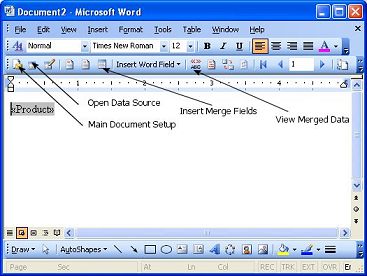
- Click the Main Document Setup Button to setup your document size.
- Click the Open Data Source button.
- Choose the Excel file created in the first step.
- Insert a merge field into Word using the Insert Merge Fields buttton. Choose the field in Excel where the barcode is defined.
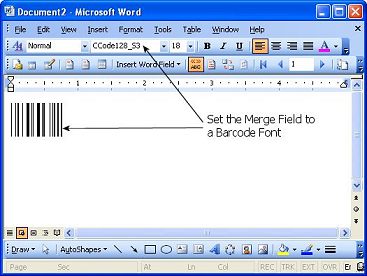
- Click on the View Merged Data button. This will display the encoded barcode data.
- Select and highlight the encoded barcode data and then choose the appropriate barcode font. e.g. CCode128_S3_Trial etc.
Please note the additional character problem mentioned above also applies here. Simply change the font back to a normal font like Arial at the end of the barcode to resolve this issue.