Tutorial in using the Barcode Fonts in Microsoft Excel 2007 - 2019 or Excel 365
All the functions available in the Encoder like generating a check digit, formatting the encoded barcode string, and adding start/stop characters are also available as Microsoft Office Macros. It is extremely easy to create and print barcodes in Excel.Please make sure that ConnectCode is installed on your computer.
Set the Security Settings in Excel 2007 - 2019 or Excel 365
- Launch Microsoft Excel.
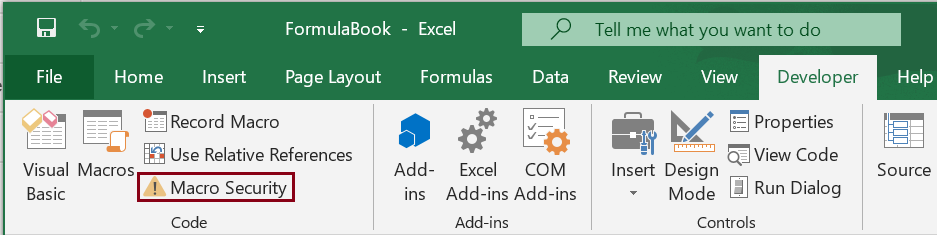
- Click on the Developer tab.
- Click on the Macro Security button on the ribbon.
- In the Macro Settings, set the setting to Enable all macros.
Import the VBA macros to Excel 2007 - 2019 or Excel 365
- Launch Microsoft Excel.
- Click on the Developer tab.
- Click on the Visual Basic button on the ribbon.
- This will launch the Visual Basic for Applications editor.
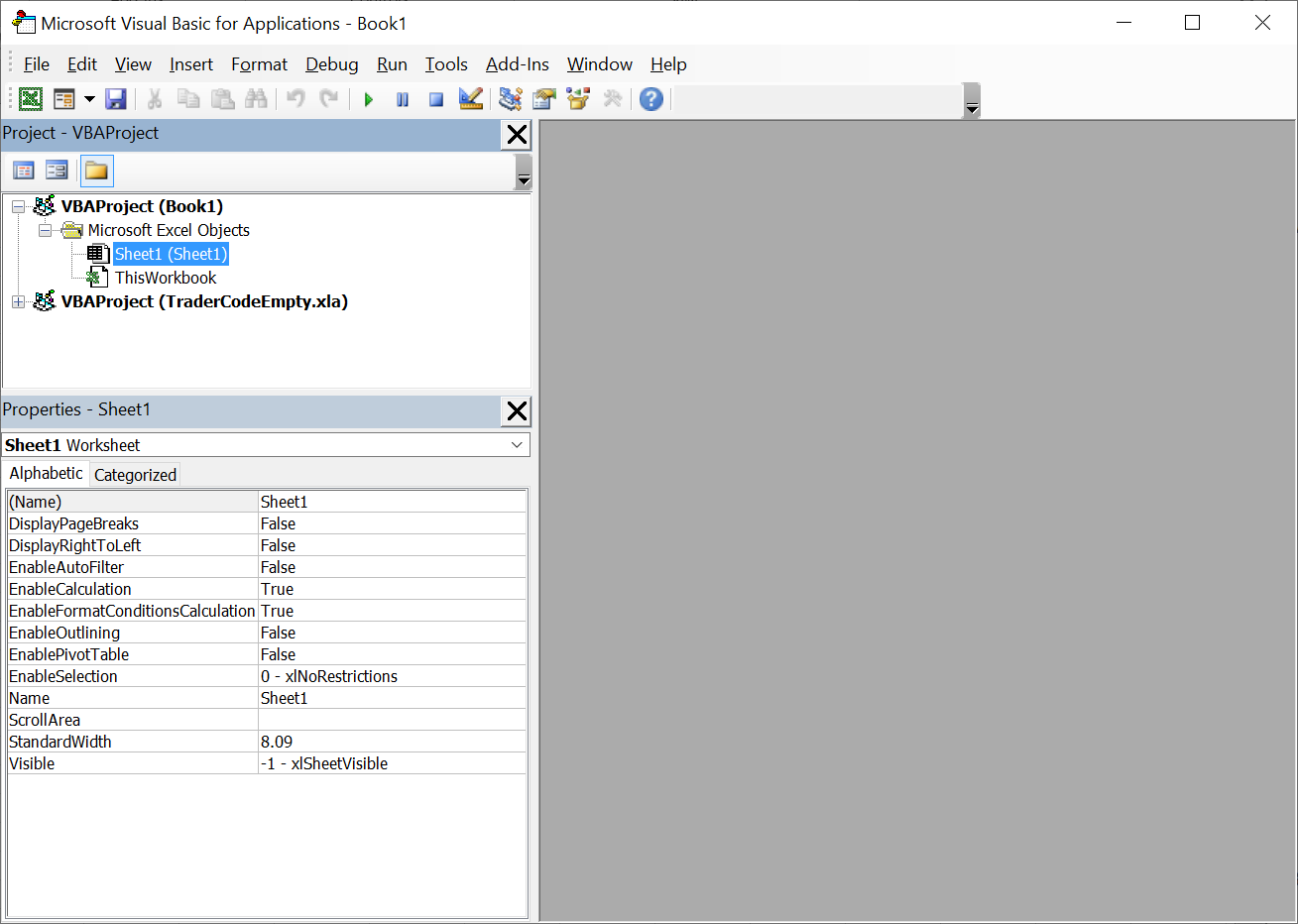
- Click on the menu File->Import File...
- Select the Encoder.bas file that is bundled with ConnectCode. This file is located in the Resource subdirectory where ConnectCode is installed.
Note - If you are using the msix installer for Windows 11, the "Encoder.bas" file is in the "Resource.zip" file. - Click on Save followed by Close in the Visual Basic Editor.
- Launch Microsoft Excel.
- Create a new Excel Spreadsheet.
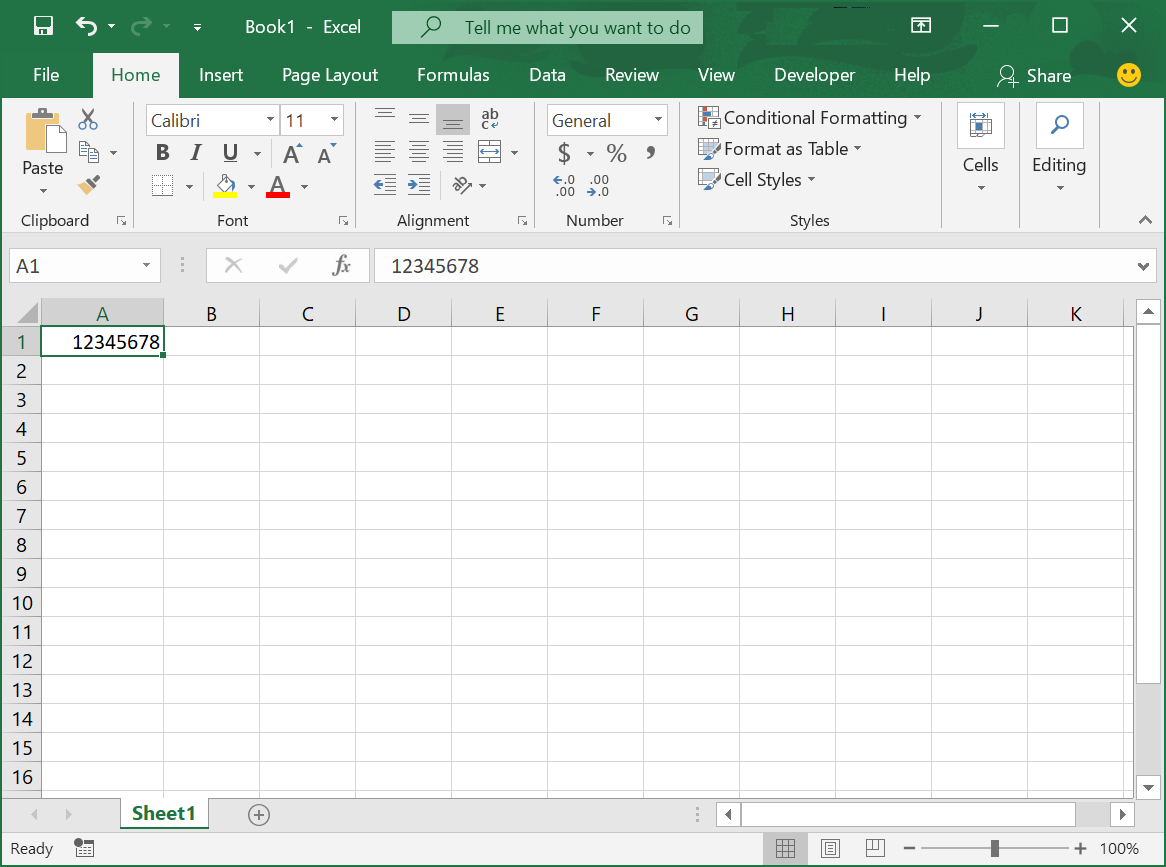
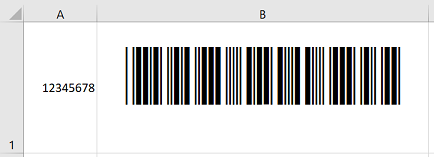
- Key in the data "12345678" in cell A1 as shown below. Leave the next column for the barcode.
- Enter the macro function in cell B1. For example, to encode a Code 39 barcode, set this cell to "=Encode_Code39(A1)".
- Hit the Enter key to see the encoded barcode string "*12345678-*".
- Change the font in the cell containing the encoded barcode string (cell B1) to CCode39_S3. Set the Font Size to 24.
- You can enter more data in the first column. After which you can encode them as barcode by copying and pasting the encoding function in the second column.
To encode other type of barcodes like Code 128 or UPC/EAN barcode or I2of5, simply use the appropriate functions/macros listed in the section List of Barcode Macros/Functions.
Tutorial in using the Barcode Fonts in Microsoft Excel 2003
Set the Security Settings in Excel 2003
- Launch Microsoft Excel
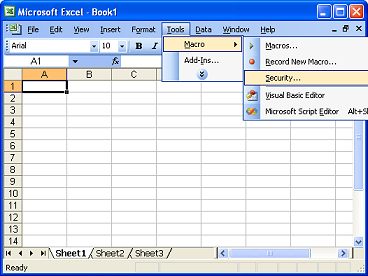
- Click on the menu Tools->Macro->Security...
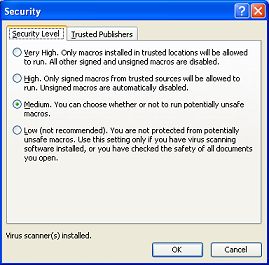
- Set the security to Medium
Import the VBA macros to Excel 2003
- Launch Microsoft Excel
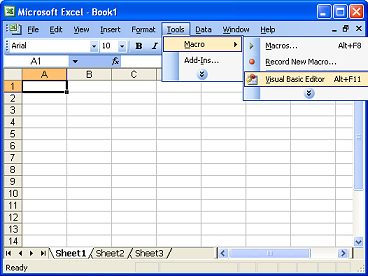
- Click on the menu Tools->Macro->Visual Basic Editor.
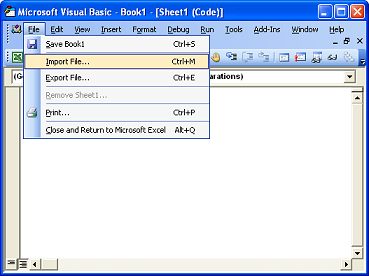
- Click on the menu File->Import File...
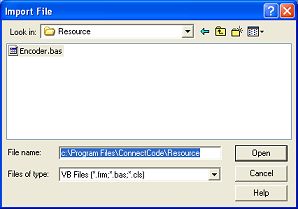
- Select the Encoder.bas file that is bundled with ConnectCode. This file is located in the Resource sub directory where ConnectCode is installed
- Click on Save followed by Close in the Visual Basic Editor
Creating a barcode in Excel 2003
- Launch Microsoft Excel
- Create a new Excel Spreadsheet.
- Key in the data "1234" in the cell A1 as shown below. Leave the next column for the barcode.
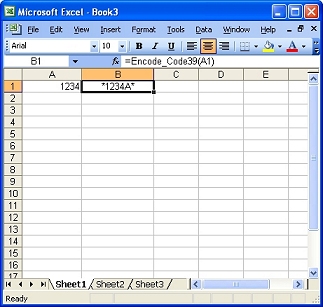
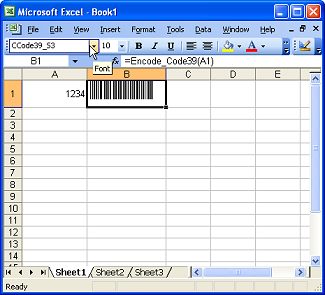
- Enter the macro function in cell B1. For example, to encode a Code 39 barcode, set this cell to "=Encode_Code39(A1)".
- Hit the Enter key to see the encoded barcode string "*1234A*"
- Change the font in the cell containing the encoded barcode string (cell B1) to CCode39_S3. You can also choose a different font size to adjust the height.
- You can enter more data in the first column. After which you can encode them as barcode by copying and pasting the encoding function in the second column.