
Free Barcode Software Encoder
A software Encoder is bundled with ConnectCode to help you easily make use of the barcode fonts. This Encoder implements the check digit/check character calculation, automatic addition of start/stop characters and parity positioning mentioned in the help files. You will be able to just key in the data that you will like to encode as a barcode and leave the character mappings to the Encoder.
Please also check out our new Barcode Software Encoder for Windows 11
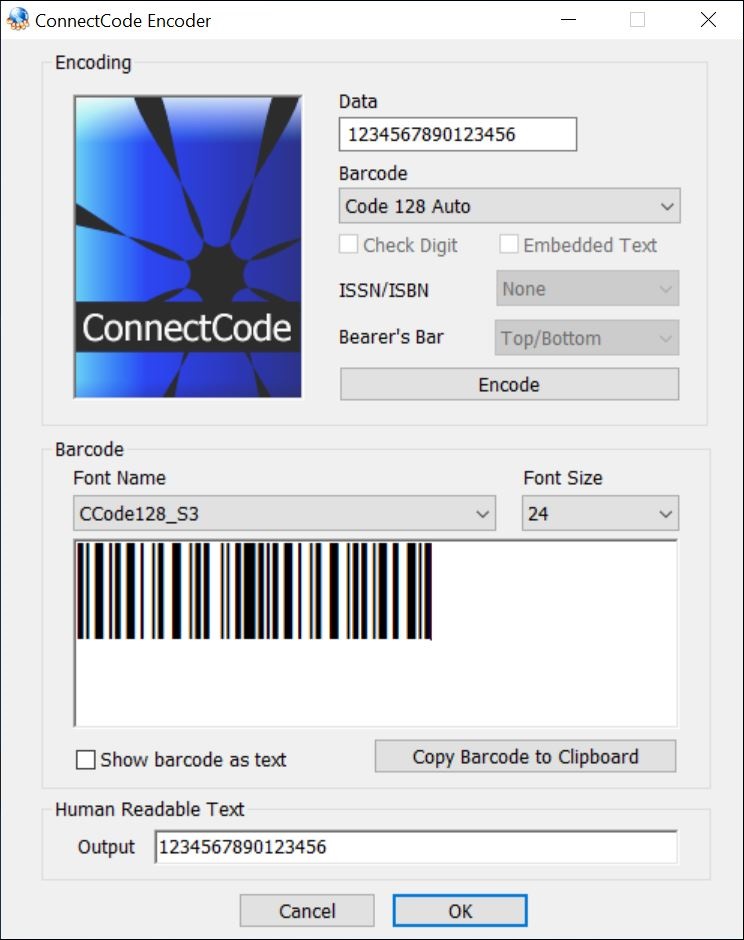
Using the Encoder, you will be able to preview the final output of the font and copy/paste the barcode into any text application or editor. It will definitely save you time in using the ConnectCode barcode fonts.
The Encoder can be started from your Windows Start Menu.
Options
- Data - The data to be encoded as a barcode.
- Barcode - The type of barcode to generate.
- Check Digit - Whether to automatically generate the check digit of the barcode. If the barcode does not support Check Digit, this option will be ignored.
- Human Text - Some barcodes like EAN and UPC can have text overlayed with the barcode.
- Generate ISSN/ISBN - Whether to generate the ISSN, ISBN or ISBN 13 number when creating a EAN13 barcode. The number will be placed on top of the barcode.
- Bearer's Bar - For ITF14 barcode only. Either a Top/Bottom or Rectangle Bearers bar can be selected.
- Strict GS1 128 Compliance - When this option is selected, the UCCEAN barcode generated adheres strictly to the UCCEAN / GS1 128 specifications. Otherwise it generates a barcode that can be read by the scanning algorithm of many legacy systems.
- Encode - Generate the barcode based on the options selected.
- Font Name - The barcode font used to generate the barcode. This is automatically selected by the Encoder.
- Font Size - The barcode size can be increased/decreased by changing the Font Size. A default size is selected by the Encoder when a barcode is generated.
- Show as Text - Display the encoding characters of the barcode.
- Copy Barcode to Clipboard - Copy the output to the Windows Clipboard. You will then be able to paste the output to any Windows application supporting the ClipBoard.