Using the Barcode Fonts in Crystal Reports
The barcode fonts and formulas works on Crystal Reports 2008 - 2020.
- Launch Crystal Reports and create a new blank report.
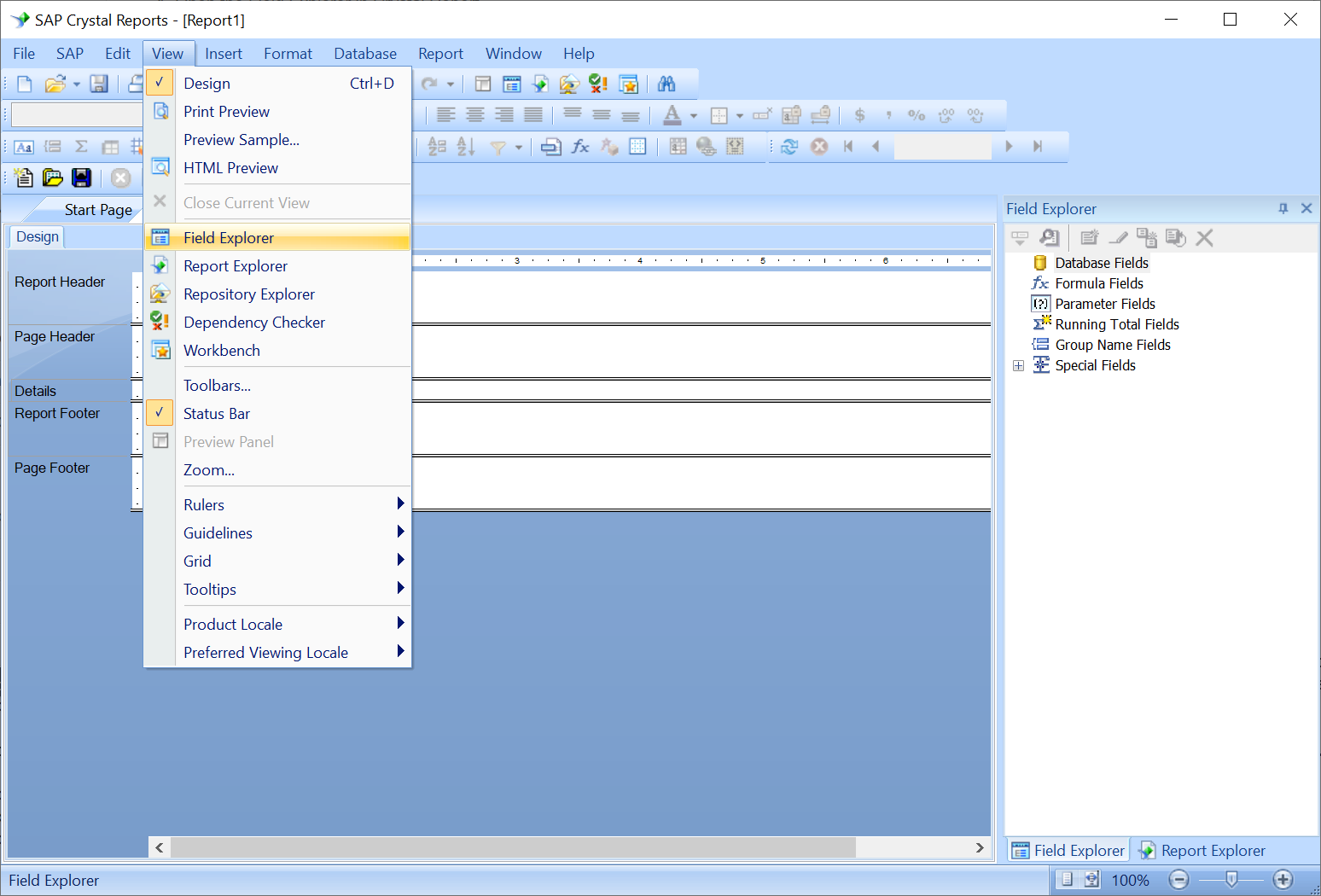
- Open the Field Explorer in Crystal Reports.
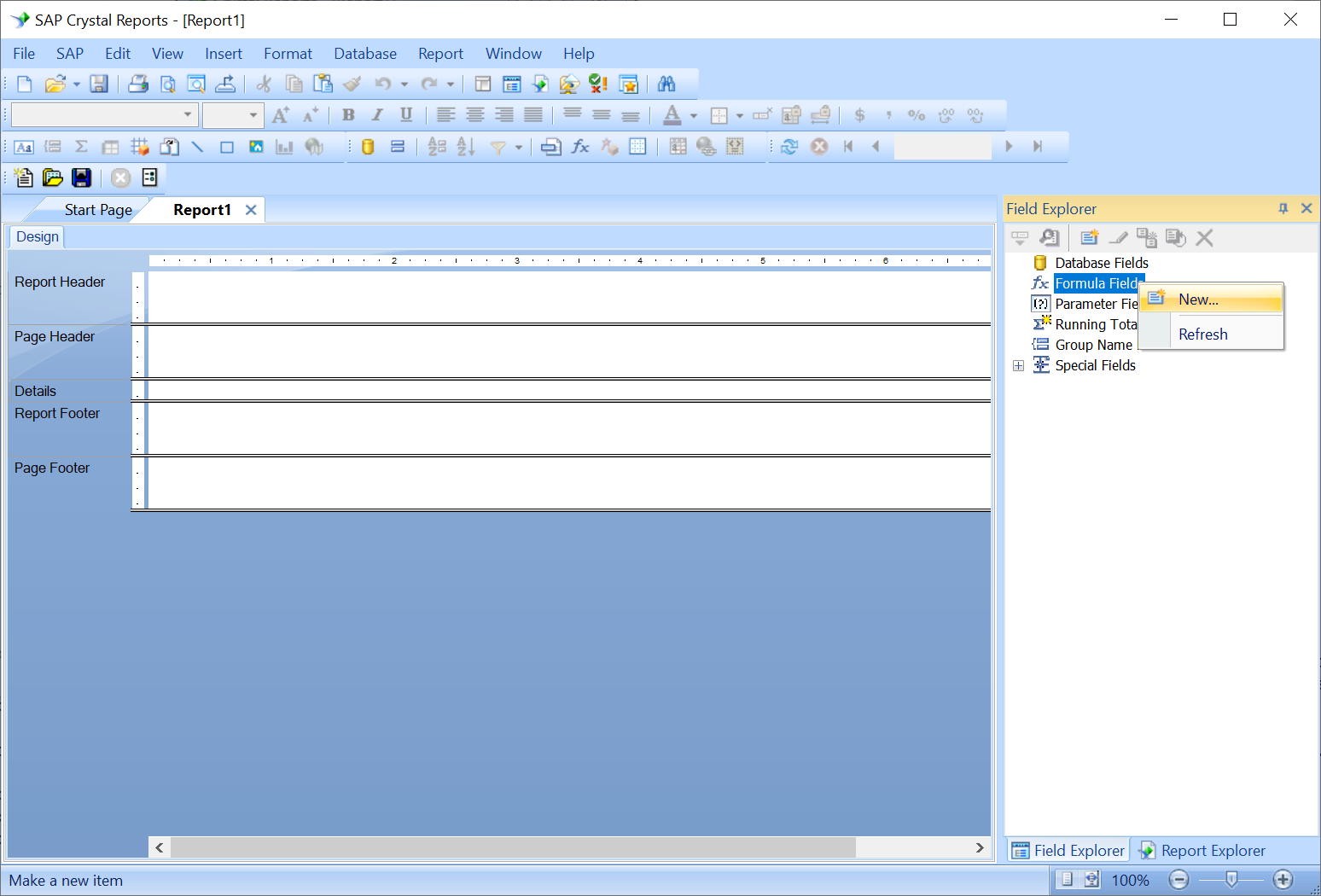
- Create a new formula by right clicking Formula Field and select New.
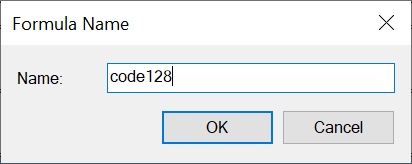
- Give the new formula a name (e.g code128).
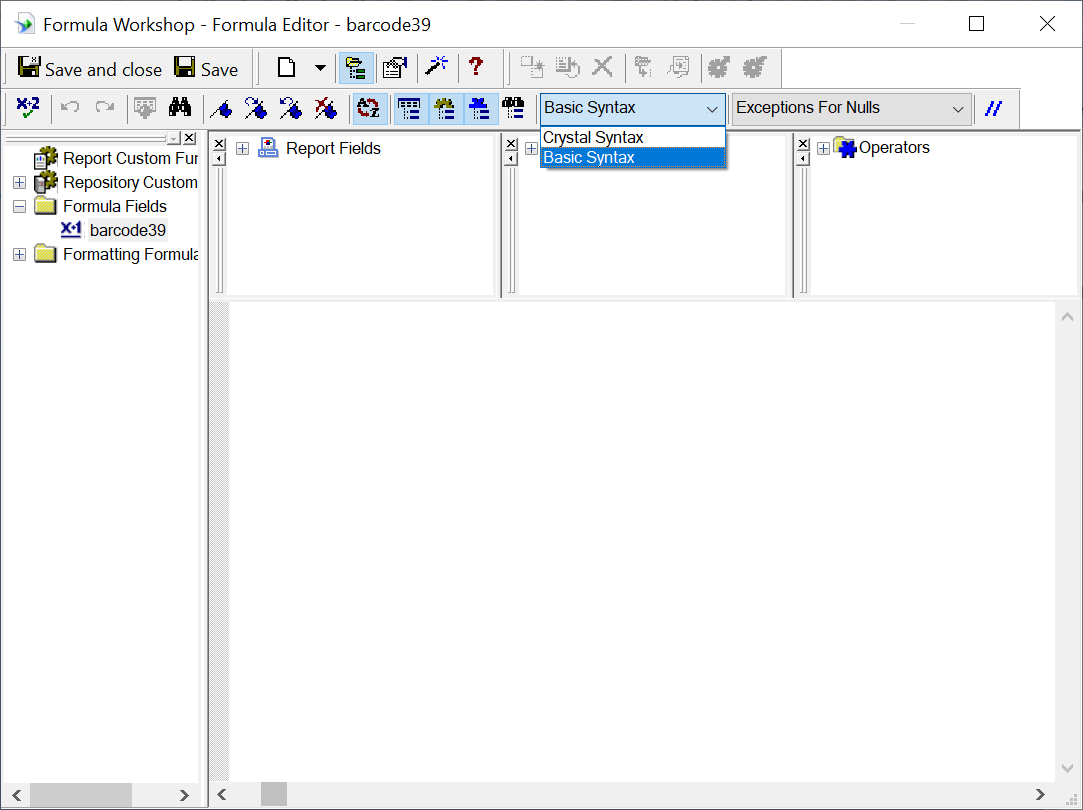
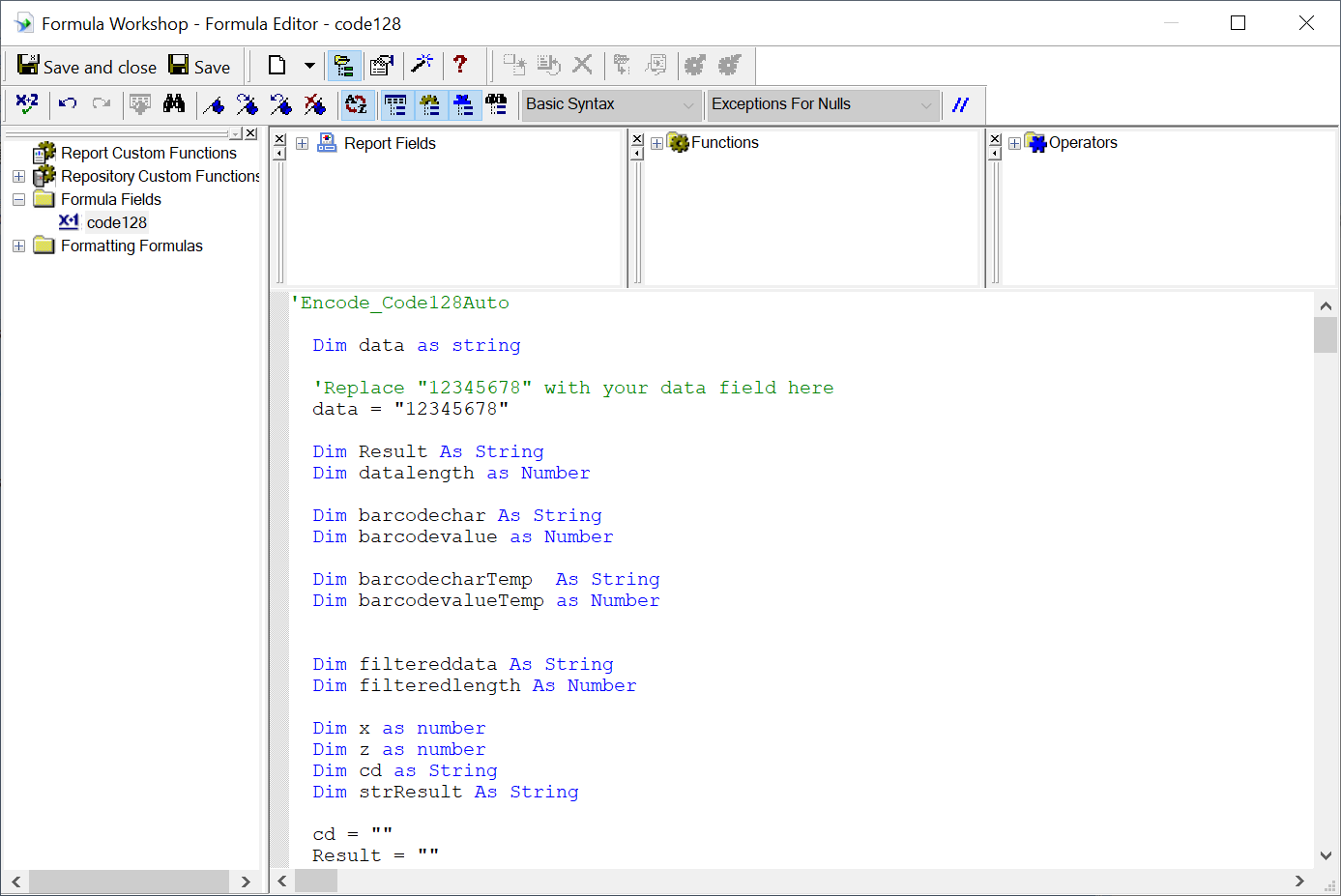
- You will now see the Formular Workshop. Set the syntax of the formula to 'Basic Syntax'.
- Copy the formula for the barcode that you intend to use from the file CR_Formula.txt (in the Resource subdirectory) to the Crystal Report's Formula Editor. For example, if you want to use Code128, copy the Encode_Code128Auto formula and paste it into the Formula Editor.
Note - If you are using the msix installer, "CR_Formula.txt" is in the "Resource.zip" file. - Modify the 'data = "12345678' statement so that it connects to your data source. For example, change the statement to data = { Employee.Name }.
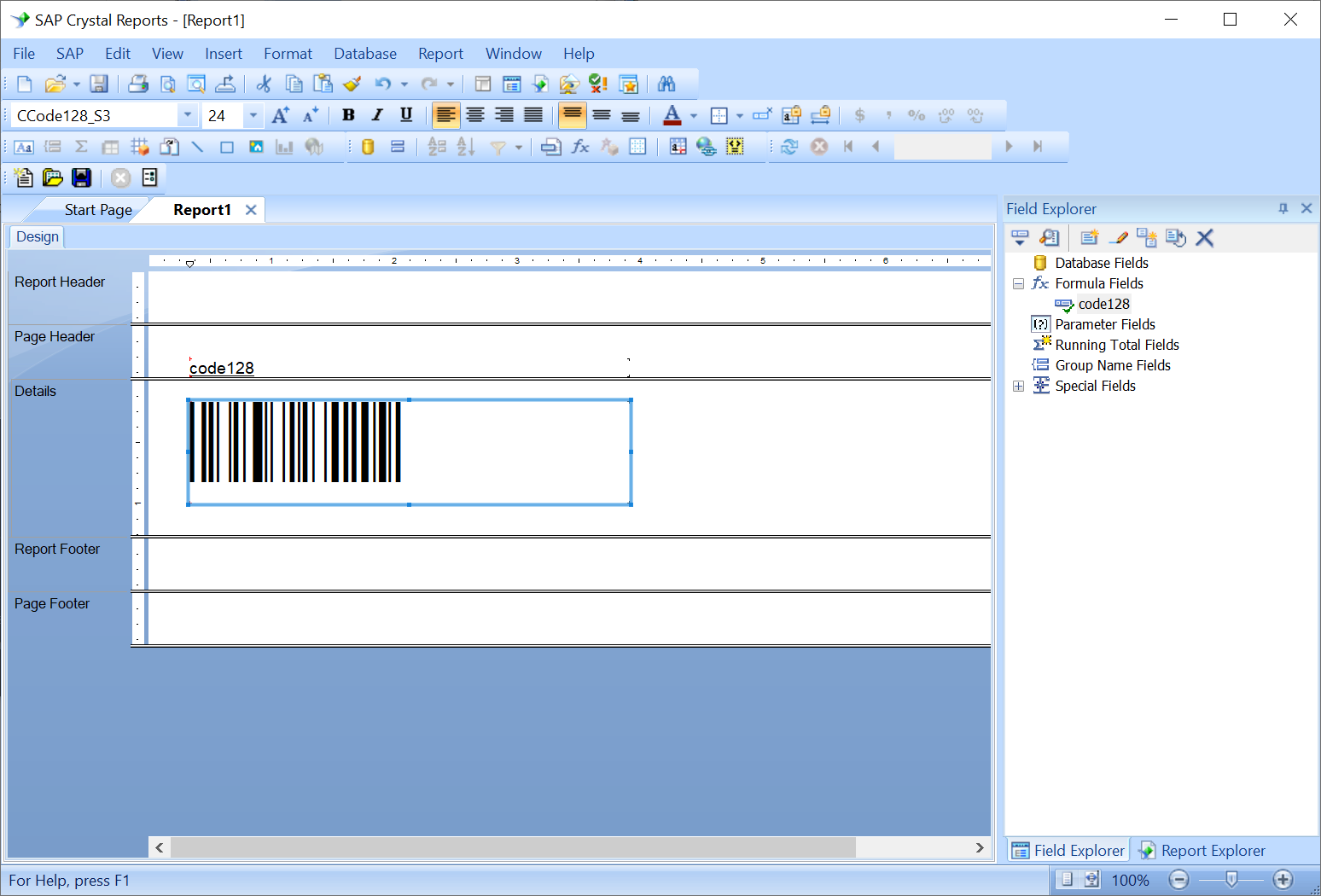
- Save the formula and drag it to your report to create a formula field.
- Set the font of the formula field to the appropriate barcode font. For example, for Code 128, the font can be CCode128_S2 or CCode128_S3. The font preview in the drop down list of Crystal Reports may appear as barcodes.
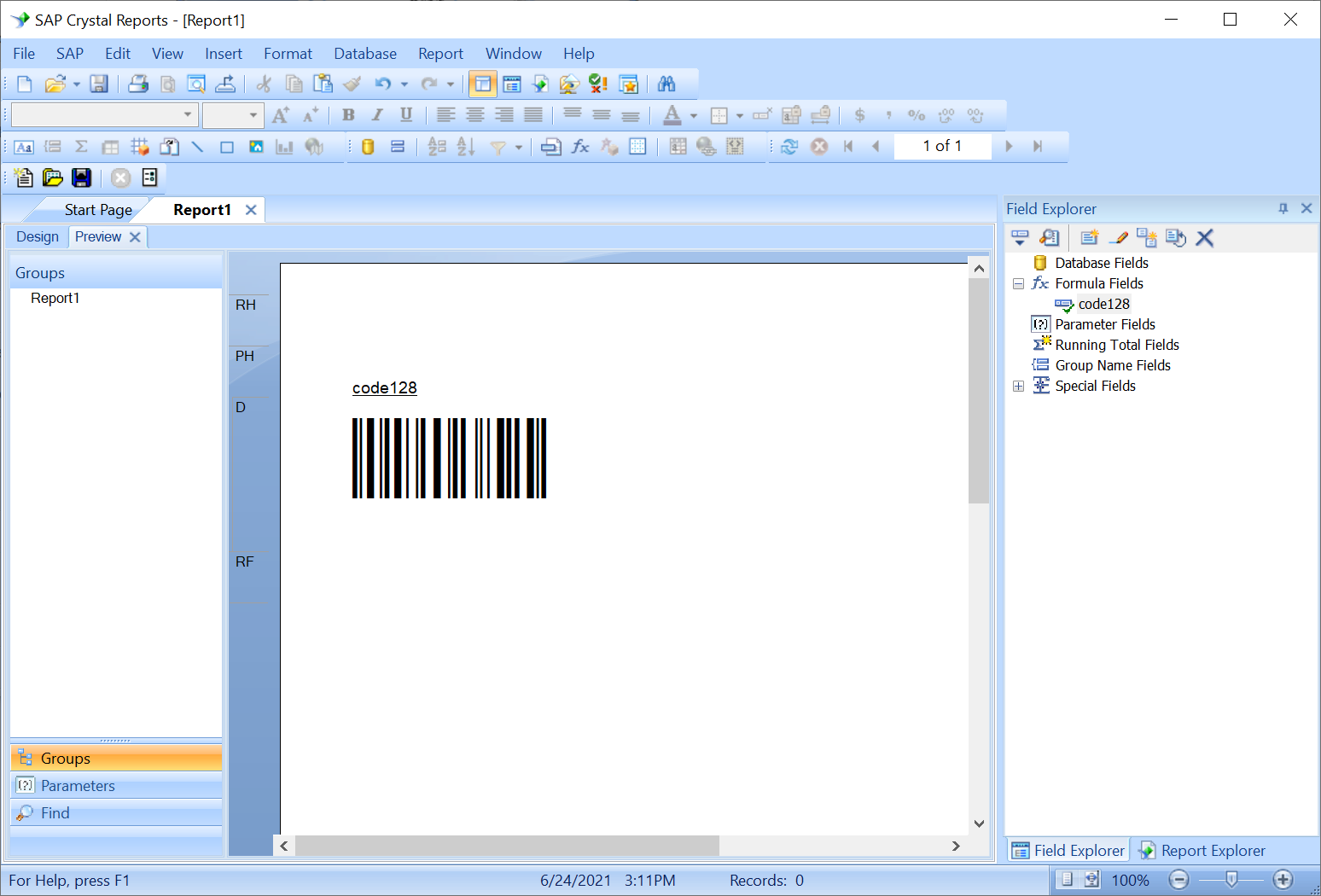
- Click on the Preview tab to see the generated barcode.