
Print labels with data from CSV files on iPhone, iPad, or Mac
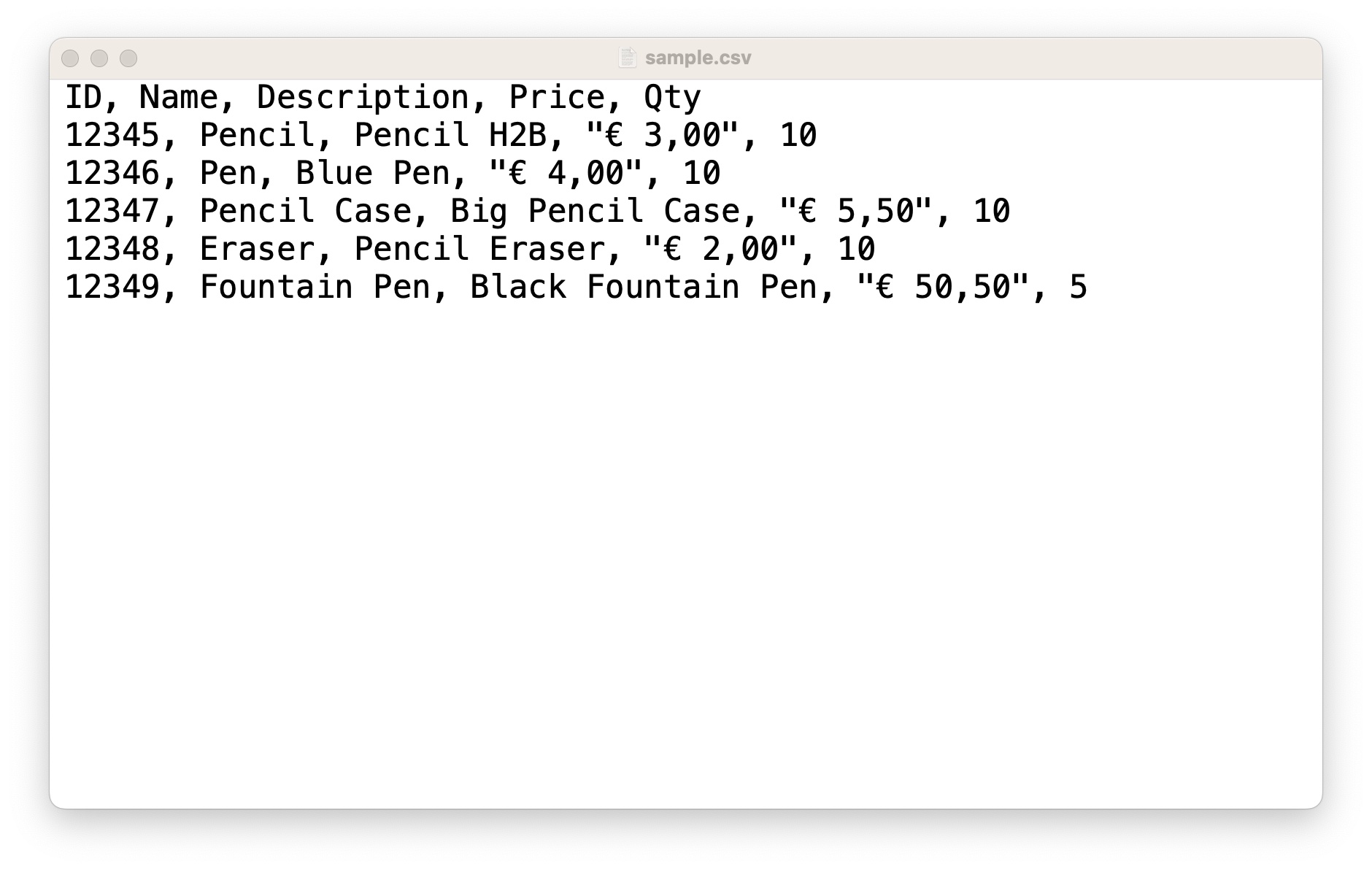
Barcode & Label is a label design, barcode, mailing address, and envelope printing app. It allows you to print labels with data extracted from a CSV (Comma Separated Values) file easily. The screenshot below shows a sample.csv file with the expected format of the file. In sample.csv, there are five rows of data and a header row describing the names of each column.
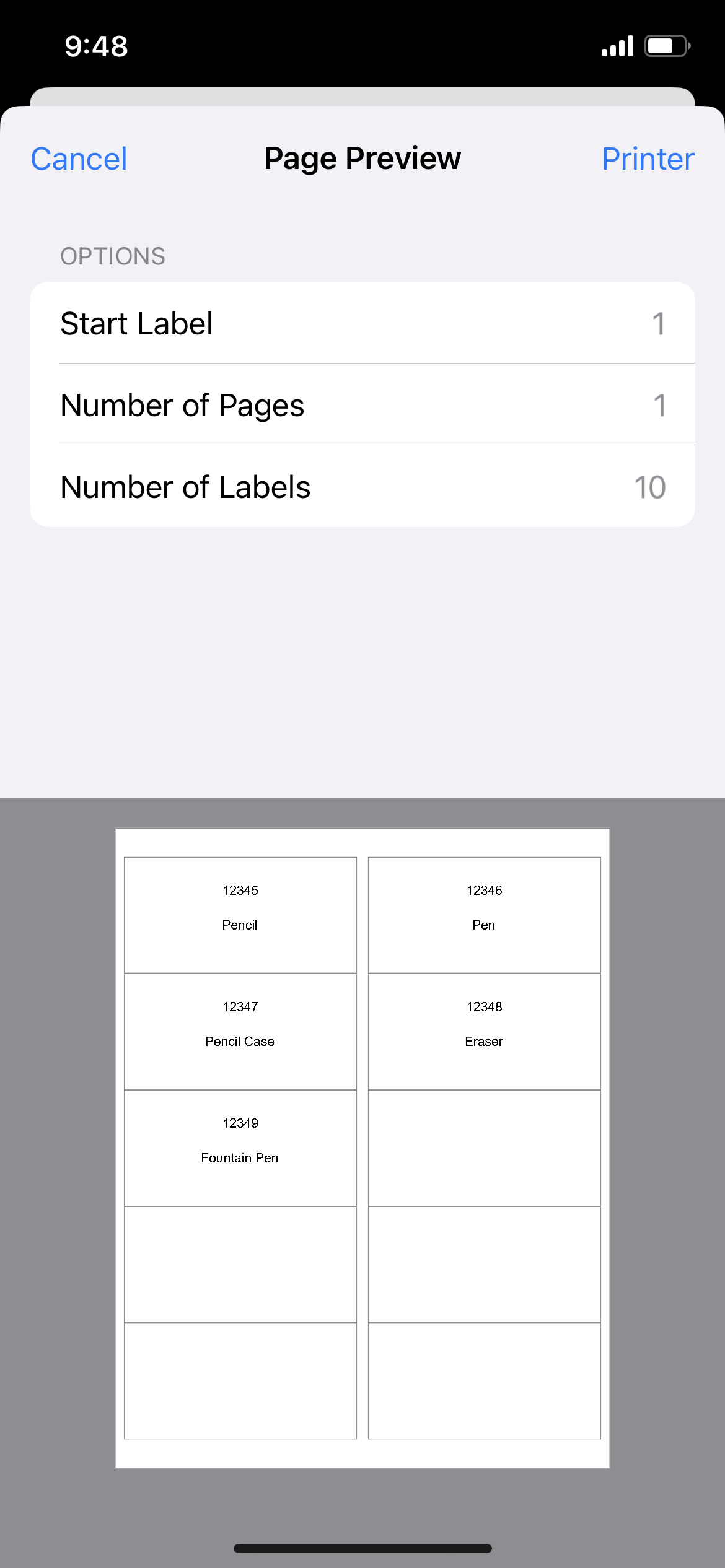
After importing the CSV file into the Barcode & Label app, we can easily print labels with data from any of the columns of the CSV file. The screenshot below illustrates the printing of the first two columns of the CSV file.
The label design process involves first importing a CSV File followed by inserting columns from the CSV file into the label. This is described in detail below:
How to print labels with data from a CSV (Comma Separated Values) file? - Video
How to print labels with data from a CSV (Comma Separated Values) file? - Tutorial
1. Launch the iOS Barcode & Label app. First, let us import a CSV file. Tap on the Page button at the top left corner of the screen and select Data Source -> CSV -> Select option to select a CSV file. We can select the sample.csv file provided.
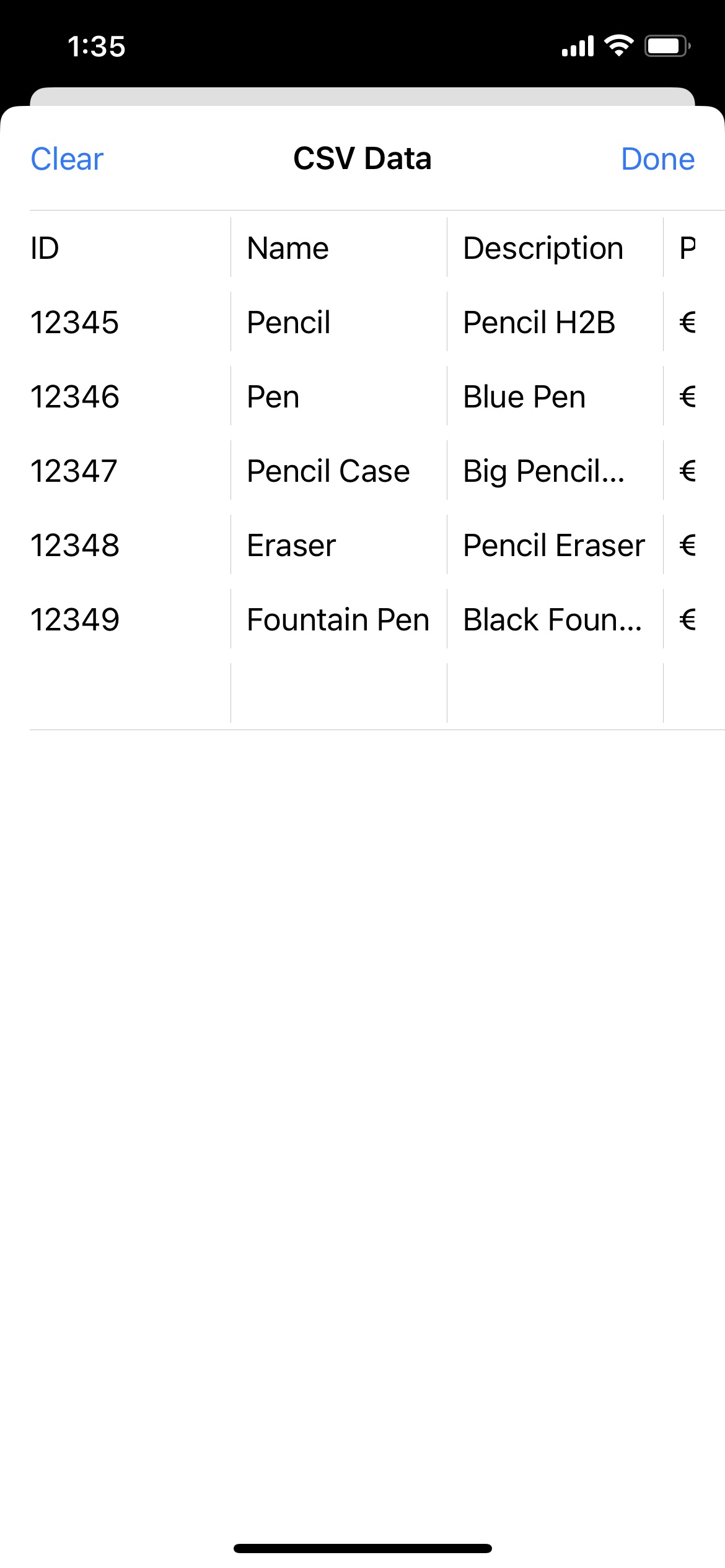
2. We can easily view the imported CSV file by tapping on the Page button at the top left corner of the screen and then selecting Data Source -> CSV -> View. This shows us sample columns and rows of data from our CSV file.
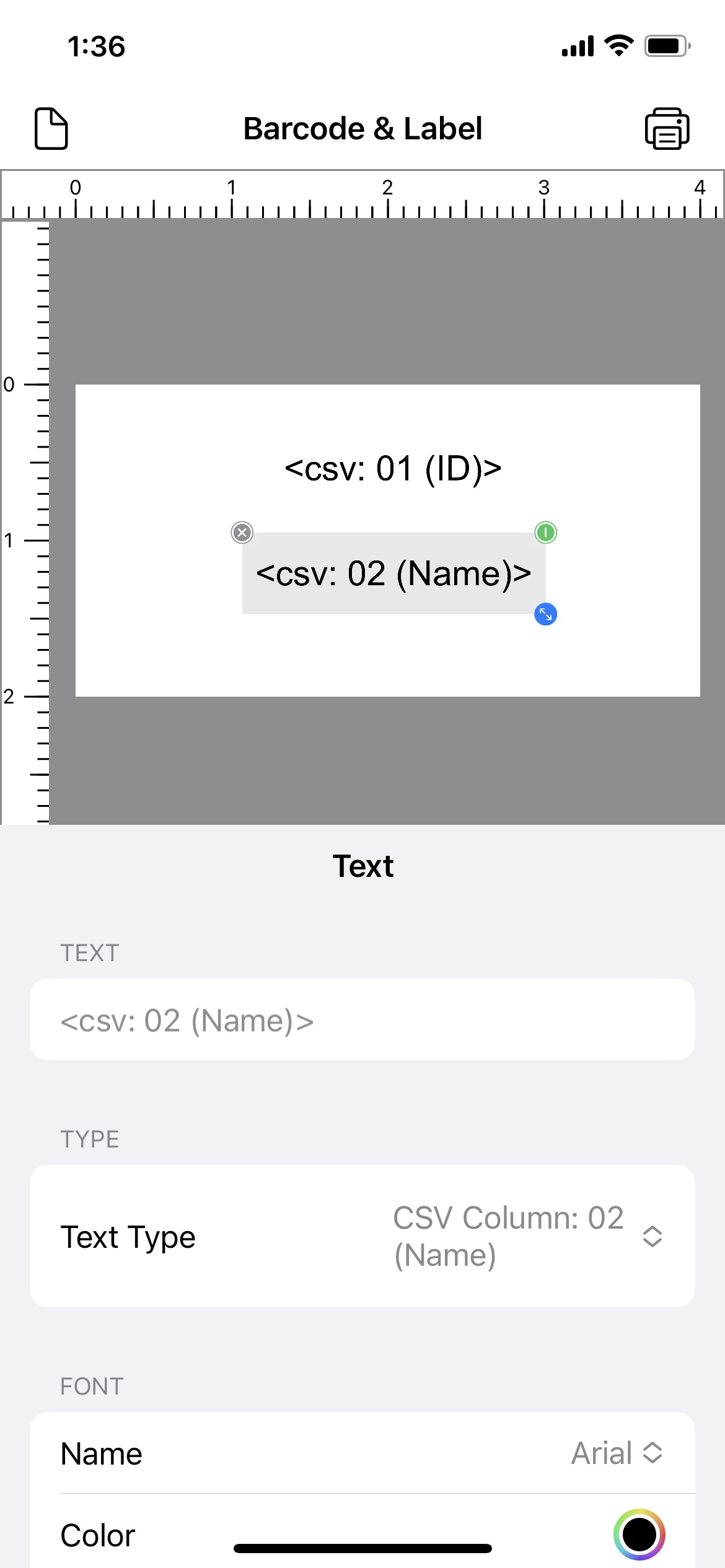
3. Next, let us insert columns from the CSV file onto our label design. Tap on the "+" button at the bottom of the screen and add a Text object to the label. Tap on the "i" button and change the Text Type to "CSV Column: 01". If you remember the first column in the CSV file is our Product ID.
4. Tap on the "+" button and add a second Text object to the label. Tap on the "i" button and change the Text Type to "CSV Column: 02". The second column in the CSV file is our Product Name.
5. Tap on the Preview button (top right corner) to preview the labels. Notice how data from the first and second columns of the CSV file are populated onto the label for printing.
When we save this label design, the data from our CSV file will automatically be saved as part of the label. When the same label is loaded, the CSV file data will automatically be loaded and ready to use for printing.
At any time, you can change the data from the CSV file by tapping on Data Source -> CSV -> Select to select a new CSV file. Alternatively, you can clear the CSV data by tapping on Data Source -> CSV -> View -> Clear.
CSV File Format
The following provides an overview of the CSV File Format supported by Barcode & Label.
CSV File Format Notes
- Column Headers in the First Row.
- Up to 10 columns supported.
- Up to 500 rows supported (50 row in the Free version).
- Comma (",") as column delimiters.
- Use quotes ("") to wrap columns with commas.