Creating barcodes using Java
Barcode Fonts JAR (Java Application Archive) library- JAR File - ConnectCodeBarcodeFontLibrary.jar
- Folder -
\Resource\Java - Java Requirements - JDK1.6 (or onwards)
2. Create a new project by going to the menu File->New Project.
3. Select a Java Desktop Application and click on the Next button. On the Disclaimer page, click on the "Next" button again.
4. Enter a Project Name or use the default name and leave the rest of the options as default. In our case, the project is called "DesktopApplication2".
5. Click on the "Finish" button and a new project is created.
6. By default, the Design view of the desktop application will be automatically opened.
7. Select a Label object from the Palette and drop it on the application.

8. Next, right click on the project in the Projects window and right click on the Properties option.
9. Select Libraries in Categories.
10. Click on the "Add JAR/Folder" button and navigate to c:\Program Files\ConnectCode\Resource\Java folder.
11. Select the ConnectCodeBarcodeFontLibrary.jar file and click on the "Open" button followed by the "OK" button.
12. Click on the "Source" button. This button is only available if you have opened the project view file. In our case, it is the "DesktopApplication2View.java" file.
13. Add the following import statement.
import net.connectcode.*;
14. Find the following line in the constructor of the file
initComponents();
15. Add the code marked by "// TODO" in the function. The code uses the barcode fonts JAR library to create barcode output characters. These characters are then used in jLabel1 together with the "CCode39_S3.ttf" barcode font. Use the "CCode39_S3_Trial.ttf" is you are using the trial version.
    initComponents();


    // TODO

    initComponents();

    Code39 code39=new Code39();

    String outputStr=code39.encode("12345678", 1);

    //String humanTextStr=code39.getHumanText();

    jLabel1.setText(outputStr);

    jLabel1.setFont(new java.awt.Font("CCode39_S3",java.awt.Font.PLAIN,24));
16. Click on the "Design" button.
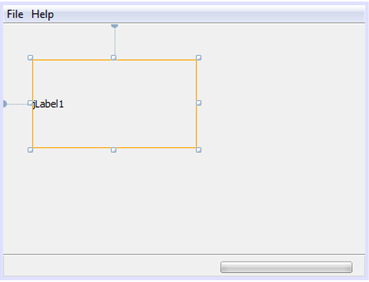
17. Increase the boundary size of jLabel1.
18. Run the project by using the F6 function key. An application with the Code39 barcode, as shown below, will be launched.

Using ConnectCodeBarcodeFontLibrary with a Java Application in Eclipse 1. Launch the Eclipse IDE.
2. Create a new project by going to the menu File->New Java Project.
3. Enter "ConnectCode Barcode Software" as the Project Name and leave the rest of the options as default.
4. Click on the "Next" button and in the Libraries tab click on the "Add External JARs" button.

5. Navigate to the c:\Program Files\ConnectCode\Resource\Java folder.
6. Select the ConnectCodeBarcodeFontLibrary.jar file and click on the "Open" button followed by the "Finish" button.
7. In the Package Explorer, right click "ConnectCode Barcode Software" -> New -> Class.
8. Enter "Demo" as the name of the class, check on "public static void main(String[] args)" option and click on the "Finish" button.
9. Add the following import statement to the newly created Demo.java class.
import javax.swing.JFrame;

import javax.swing.JLabel;

import net.connectcode.*;
10. Add the following code to the Demo.java class. The code first creates JFrame and JLabel objects. This is followed by using the Code39 class in the barcode fonts library and the "CCode39_S3.ttf" font file to create a barcode.
	public static void main(String[] args) {


	      JFrame frame = new JFrame("ConnectCode Barcode Software Demo");

	      JLabel jLabel1 = new JLabel();

	      Code39 code39=new Code39();

	      String outputStr=code39.encode("12345678", 1);

	      //String humanTextStr=code39.getHumanText();

	      jLabel1.setText(outputStr);

	      jLabel1.setFont(new java.awt.Font("CCode39_S3",java.awt.Font.PLAIN,24));

	      frame.setSize(400, 400);

	      frame.setVisible(true);

	      frame.add(jLabel1);

	      frame.setDefaultCloseOperation(JFrame.EXIT_ON_CLOSE);


	}
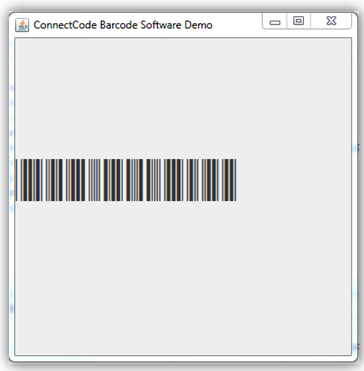
11. Click on the menu Run->Run option. An application with the Code39 barcode, as shown below, will be launched.